Logging into the Pedders Perks Mobile App - iOS Login
Logging into the Pedders Perks Mobile App
iOS
- Install the Engage (SmartSpending) app from the App Store

- Launch the app, tap Sign In, enter your Pedders email address, enter the verification code sent to your Pedders email:
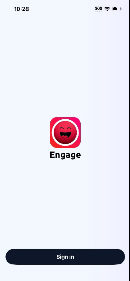
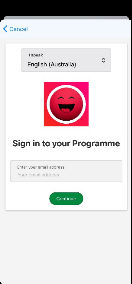
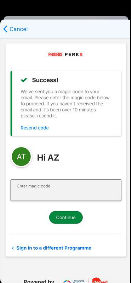
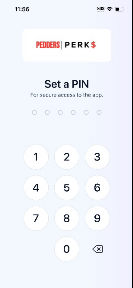
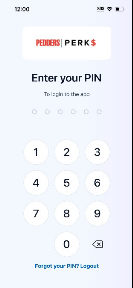
- Create and confirm a pin to log into the app:
Related Articles
Logging into the Pedders Perks Mobile App - Android Login
Logging into the Pedders Perks Mobile App: Android Install the Engage (SmartSpending) app from the App Store (installed app icon displays differently, see below): Launch the app, tap Start, enter your Pedders email address, enter the verification ...
8x8 Voice Mobile App - iOS
8x8 Mobile App (iOS) Open the app store and search for 8x8 and select and install 8x8 Work Open the app once installed, launch it and select Login Enter the email address your okta account is set up with (8x8 uses okta for authentication) When you ...
Viva Engage - Set up Viva Engage on your mobile phone
Set up Viva Engage on your mobile phone Download Viva Engage from the App Store or Google Play Store Type your Microsoft 365 work @pedders account email address and password.
Viva Engage - Access Viva Engage from your computer
Access Viva Engage from your computer You can access Viva Engage via: Pedders intranet Microsoft Teams Okta. From Pedders Intranet Select the app launcher in the upper-left corner of your screen Select Engage Can't find the app you're looking for? ...
8x8 Voice Mobile App - Android
8x8 Mobile App (Android) Open the play store, search for and install 8x8 Work Open the app once installed, launch it and select Login Enter the email address your okta account is set up with (8x8 uses okta for authentication) When you get to this ...